Stop Instagram, TikTok and Facebook links opening in their app on Android
Choose which app opens a link on Android. Turn the platform's app off, add Outplay's links on its Open by default page, and what is known about Samsung and Android 11.
Tap a link a friend sent and Android decides which app gets it. If that app is Instagram, TikTok or Facebook, the link opens there and not in Outplay. This page changes that.
Outplay’s own first-run setup walks through these steps, one screen each. This page is the same thing written down. These screens were checked in an emulator on Android 17, Android 14 and Android 11. The Samsung notes below come from one real phone. Your phone may word the screens differently.
You can skip all of this
In the app the link came from, tap Share and pick the app you want. Copying the link and pasting it into the app works too. Android’s link handling only decides what a tap does.
Step 1. Turn the other app off
Do this for each app that takes the links, before anything else.
- Open Settings, then Apps, and pick the app.
- Tap Open by default. On some phones it is called Set as default.
- Choose In your browser, or turn off Open supported links.
- If there is no switch and no choice, tap Clear defaults.
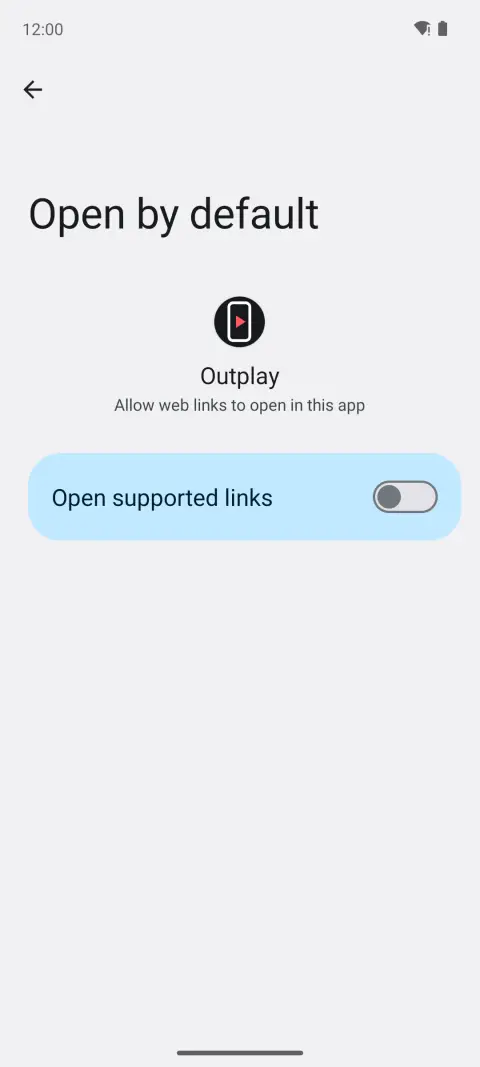
“In your browser” sounds as if the links will now go to the browser, and they will until you do step 2. If the browser is where you want them, you are finished here.
Android 17’s YouTube page offers only In the app and In your browser, so pick the second. Instagram’s, TikTok’s and Facebook’s own pages have not been checked on a phone, so what they show is unknown.
Step 2. Add Outplay’s links
Open Outplay’s own Open by default page. In Outplay the button on the setup screen goes straight there. By hand it is Settings, Apps, Outplay, Open by default. If Android opens App info instead, tap Open by default there. On some phones it sits under Advanced.
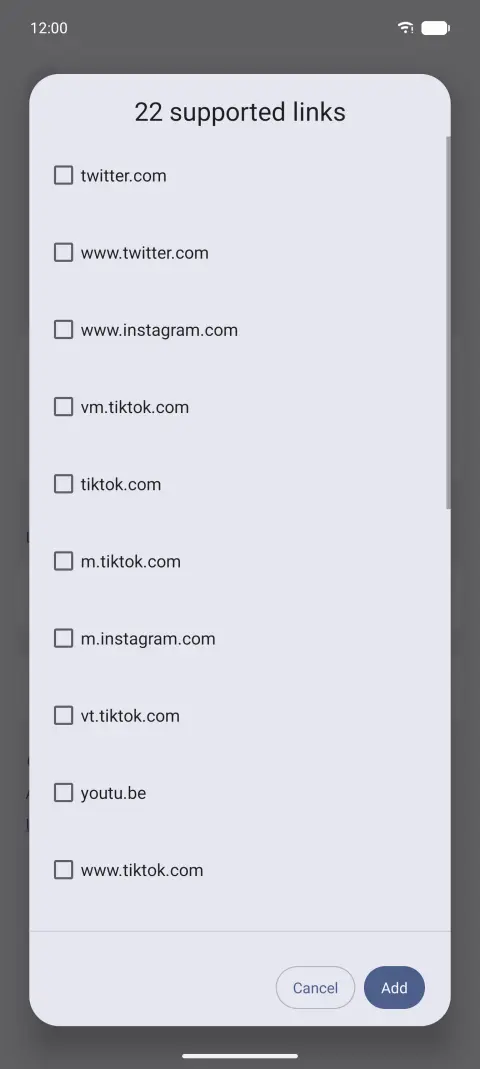
- Tap Add link.
- Tick every box you can. The list scrolls.
- Tap Add.
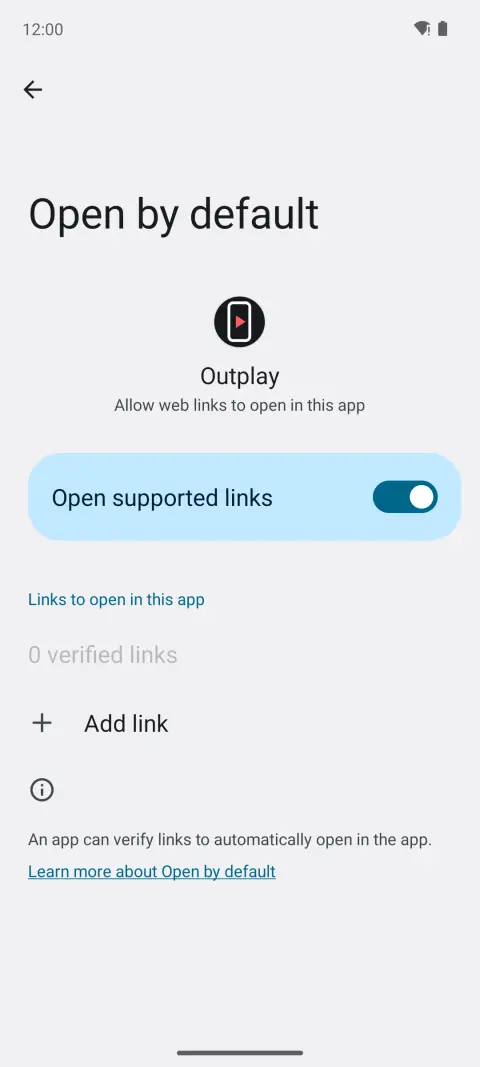
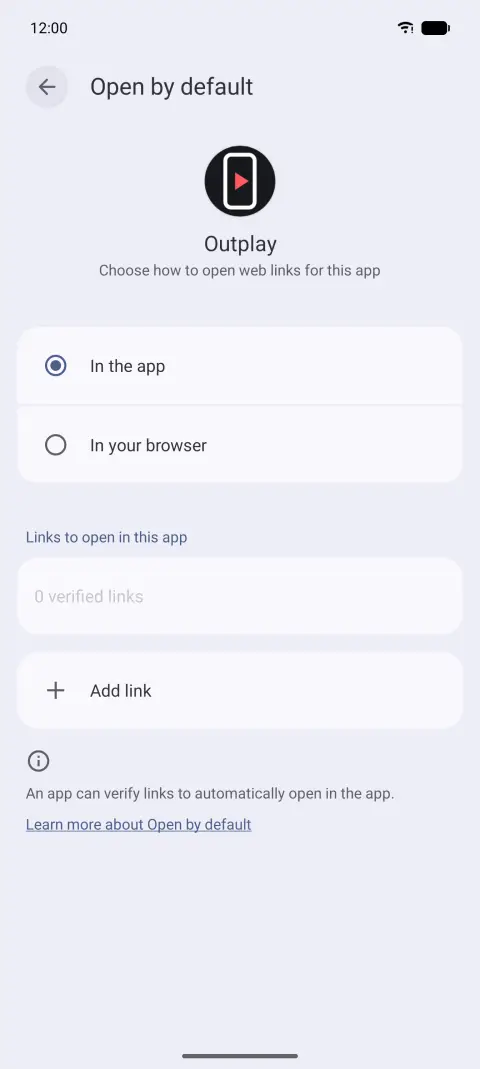
On Android 17 the page has In the app and In your browser where Android 14 has the switch. Add link is there on both.
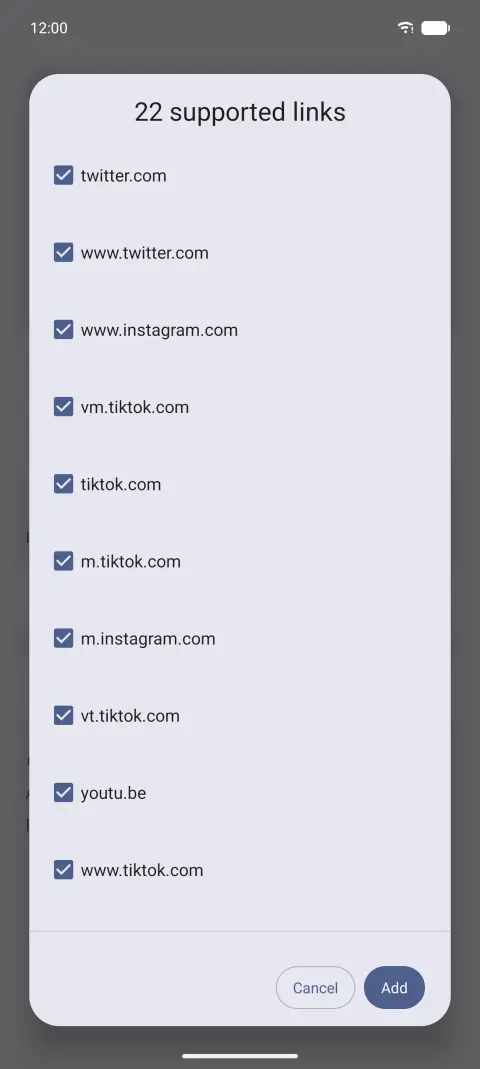
A phone that shows no Add link may have one choice instead. Pick Allow app to open supported links.
The order matters. Until YouTube lets go of its links, Outplay’s YouTube rows are greyed out and can’t be ticked.
Outplay asks for every box, X and YouTube included, because there is no way to describe a filtered list in a dialog of 22 addresses. The cost is that every X link and every YouTube link now goes through Outplay first, and the ones it doesn’t play are handed on. On the emulator, an X post with no video took roughly 2 to 4 seconds to reach the X app or the browser. An ordinary YouTube video took under a second. If that bothers you, untick X’s boxes later on the same page. These times have not been repeated on a real phone.
If you only want some platforms, add them all anyway and untick the others afterwards.
Check it worked
When you come back to Outplay’s setup, it checks every address. It says which are still to tick, or that links are switched off at the top of the page, or that nothing has changed. It ends with a You’re all set screen that names the platforms that now open in Outplay.
Later, the home screen has a Where links open card with one tile per platform. Each says where a tap on that platform’s links goes. Outplay also notices if links stop opening in it, and says “Links for Instagram no longer open in Outplay.”
Samsung
This was found on one Samsung Galaxy. The model and Android version are not recorded. With Outplay’s Instagram links approved, reel links still opened in Instagram. After Instagram’s own link opening was turned off, they opened in Samsung Internet instead. The cause was three preinstalled apps called Meta App Manager, Meta Services and Meta App Installer, which also claim Instagram and Facebook links. Turning off link opening for those as well as Instagram, then approving Outplay’s links, made reel links open in Outplay.
On that phone Outplay’s link approvals were also found switched off again each time. Whether a Meta or Instagram update does that is not known. If links stop opening in Outplay, go back to the Open by default page and look.
If you have those apps, Outplay’s setup gives each its own screen.
Android 11
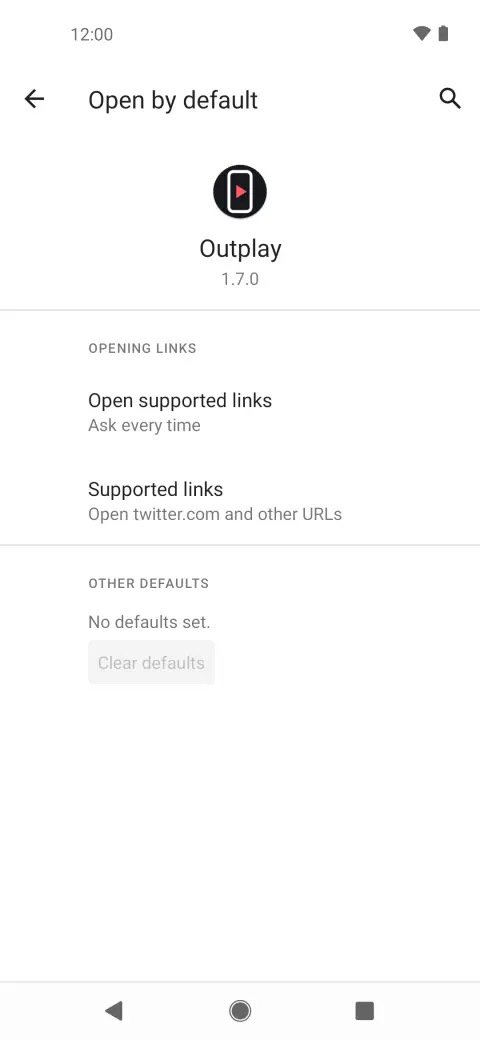
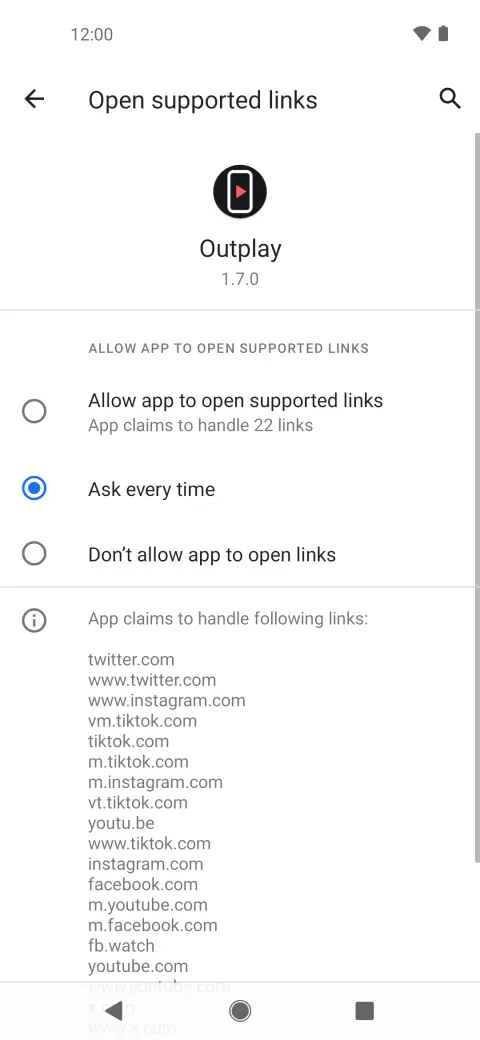
On Android 11 the app’s page has one choice, Open supported links, with Allow app to open supported links, Ask every time and Don’t allow. Allowing it for Outplay approves all 22 addresses at once. There is no list to tick. The last app you allow wins, so allowing Outplay after you kept YouTube takes YouTube’s links too.
If Android asks which app to use for a link, don’t pick Always. It remembers one address and one path only, so a different Instagram link asks again.
Android 10 and older have not been checked. Sharing a link to Outplay does not depend on any of these settings.